Exporting and running analyses
Last reviewed version: 2.22The Environment window
Analyses are set up and exported from the Environment window. Each checked row in the load condition table is exported as its own analysis. The analysis parameters are at the bottom left, the export options at the bottom right, and below them the solver selection (normally the same version as AquaEdit) and the Export button.
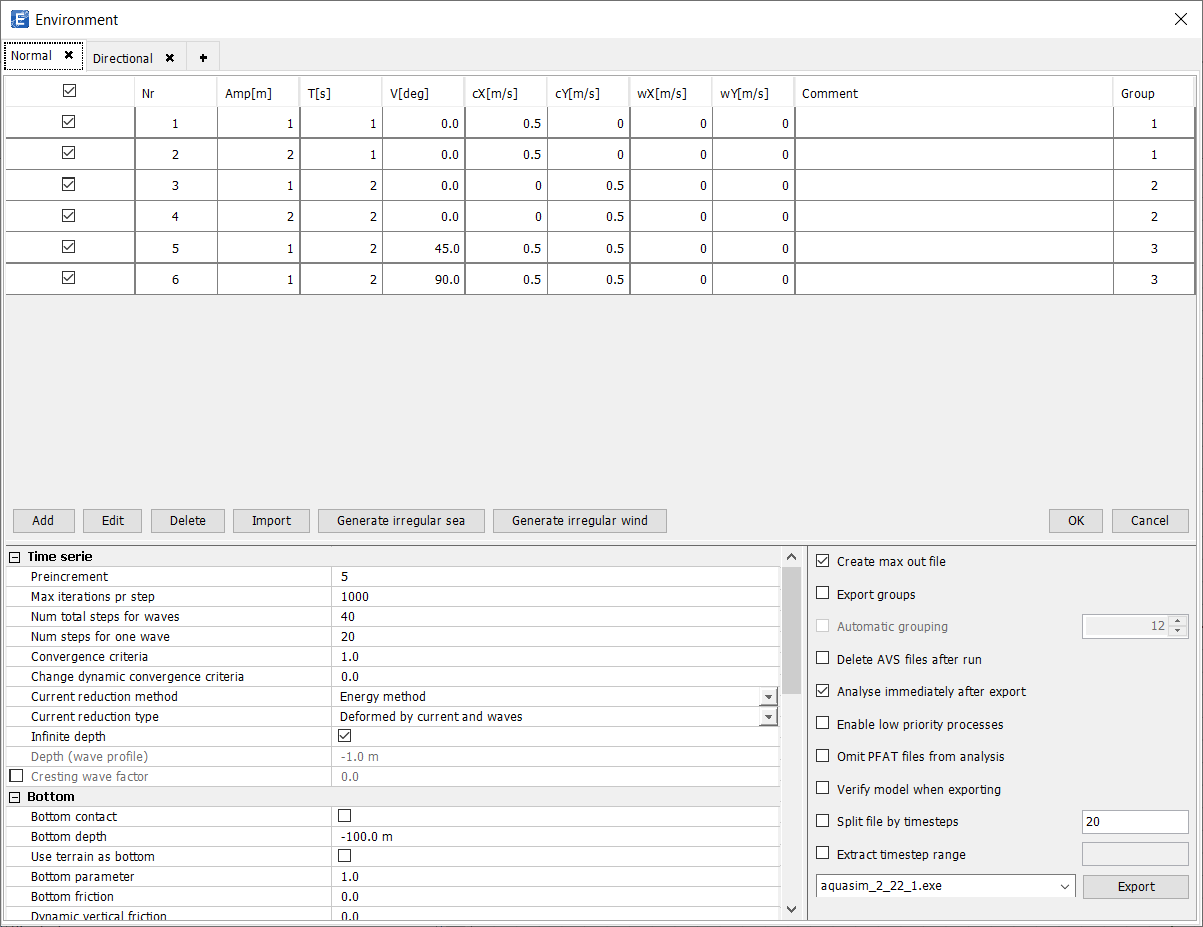
Each analysis writes an AVS result file, which is converted to AVZ for AquaView, and a PFAT file with the maximum forces in that analysis. The PFAT files from all analyses can be combined into a max out file.
Static analysis
Set Num total steps for waves to 0 to run only the static part of the analysis. It runs quickly, so use it as a sanity check before the dynamic runs: check tensions, buoyancy and that the structure finds a sensible equilibrium.
Export options
- Create max out file - creates the max out file (maximum forces across all analyses) when all analyses have completed.
- Export groups - runs the groups in parallel and the analyses within each group in sequence. See Groups and parallel runs.
- Automatic grouping (requires Export groups) - ignores the Group column and divides the analyses into the number of groups in the box to the right.
- Delete AVS files after run - deletes the AVS file after it is converted to AVZ. Saves a lot of disk space.
- Analyse immediately after export - continues straight to running the analyses on Export. Without groups, this opens the Analyse window. With groups, it runs a master batch file that starts one sub batch file per group.
- Omit PFAT files from analysis - skips the PFAT file. Saves a little time and space, but Create max out file needs it, so most users should leave this off.
- Verify model when exporting - runs Check model before exporting and reports possible issues.
- Split file by timesteps - uses PPFilter to split the result file into files with the given number of timesteps. Useful when a result file is too large to open. See PostProc.
- Extract timestep range - as above, but extracts one range, given as start-end (eg 100-200).
Analyse window or batch file
Without Export groups, AquaEdit opens the Analyse window. Start and stop analyses individually to run as many or as few in parallel as you want, or click Start all. When an analysis finishes, the next one starts automatically. From here you can also show solver messages, open completed analyses, open the folder in File Explorer, and Create max out when everything is done.
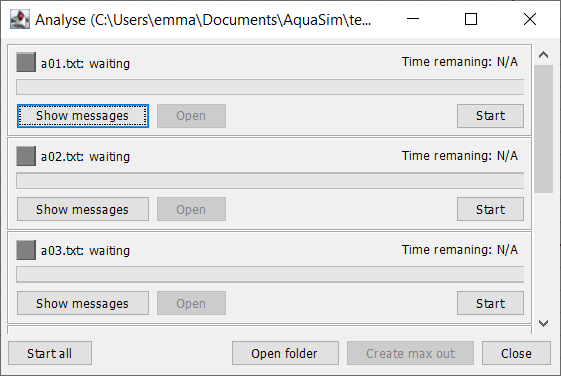
The Analyse window does not use the batch (.bat) file, but it is still written to disk. Click Open folder to find it if you want to run it manually. It runs the analyses in sequence.
Groups and parallel runs
Grouping only applies when running from the exported batch files. AquaEdit writes a master batch file that starts one sub batch file per group at the same time, and each sub batch file runs its group’s analyses in sequence.
Set the group for each load condition in the Group column of the load condition table, then enable Export groups.
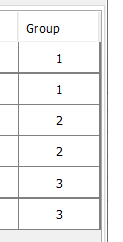
With the grouping in Figure 3, three analyses run at a time:
| Group | Runs first | Then |
|---|---|---|
| 1 | 1 | 2 |
| 2 | 3 | 4 |
| 3 | 5 | 6 |
Analyses 1, 3 and 5 start together. When analysis 1 finishes, analysis 2 starts, without waiting for the other groups. The groups don’t need to be the same size, but the run is only finished when the slowest group is done, so balance the groups if some analyses take longer than others.
The number of groups is the maximum number of analyses running at once, so choose it to suit your computer. With Automatic grouping, AquaEdit ignores the Group column and divides the analyses into the number of groups you enter.